
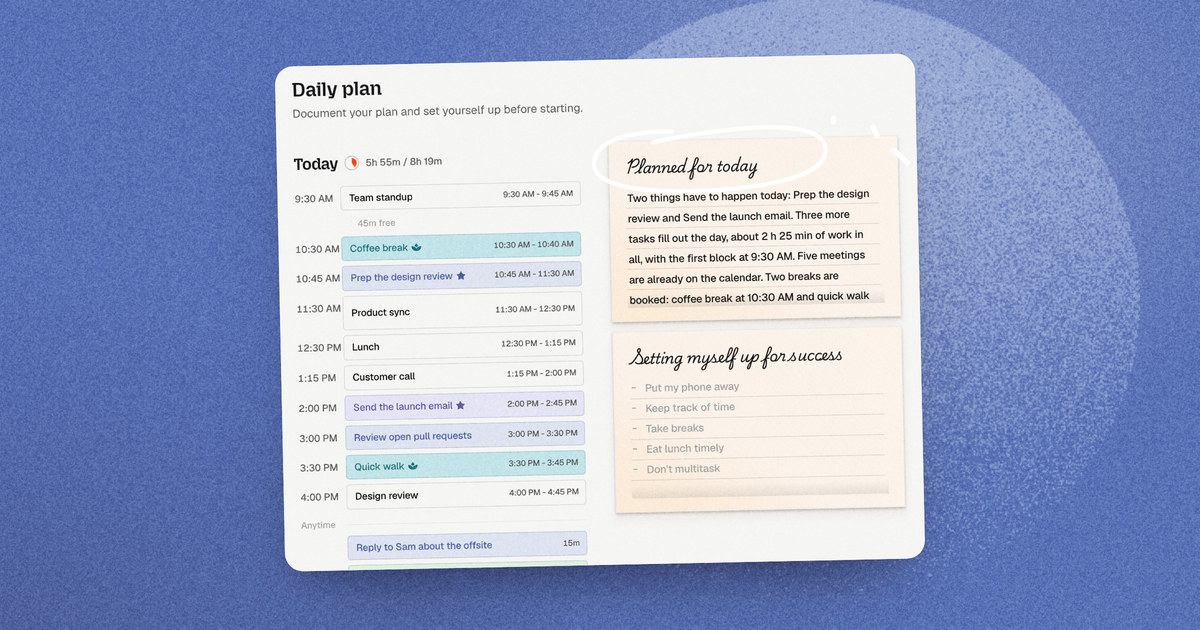
Once a day, Dayplan walks you through planning your day. It takes about five minutes, and it turns a messy list into a plan you can actually finish: three things that matter, a realistic amount of work, and breaks you'll actually take.
This guide shows you how to plan your day in Dayplan, step by step: what you'll see, what to do, and the small habits that make it work. The screenshots show an example workday in the Dayplan web app.
TL;DR: Dayplan's daily plan has five steps. Review what happened yesterday. Pick everything that's in play today. Choose up to three must-dos and move what can wait. Shape the day with durations, breaks, and calendar blocks. Then read your daily plan back and hit Get going. A workload meter follows you through the whole flow, so you'll know before the day starts if you've planned more than it can hold.
The 5 steps at a glance
| Step | The question | What you do |
|---|---|---|
| 1. Review | Yesterday in review | Decide what happens to what you didn't get to |
| 2. Pick | What's in play for today? | Pull in everything that might happen today |
| 3. Defer | Without which task does today not count? | Star up to 3 must-dos, move the rest out |
| 4. Order | Shape the day | Set durations, add breaks, drag onto your calendar |
| 5. Share | Daily plan | Read your plan back, set yourself up, get going |
The order matters. You can't narrow a list you haven't gathered, and you can't schedule work you haven't chosen. Each step does one job, so no single moment feels like a big decision.
Before you start
Plan before you open anything else. The moment you open Slack or email, other people's priorities start deciding your day. Plan first, then check messages against your plan. (More on why in The 5-Minute Morning Reset.)
Get your meetings on the calendar. Meetings are real work that takes real time. On Pro, connect your Google and Apple calendars and your events show up while you plan, so you're planning around the day you actually have. On the free plan, you plan on Dayplan's own calendar.
Know when your workday ends. Dayplan measures your plan against the time left in your workday, from now (or your work start time) until your workday ends. You can change the end time right inside the flow.
On Pro, the Dayplan Coach can also send you a morning kickoff message, in the app or over iMessage, so planning is the first thing on your plate.
Step 1: Yesterday in review
Check what carried over before you commit to new work.
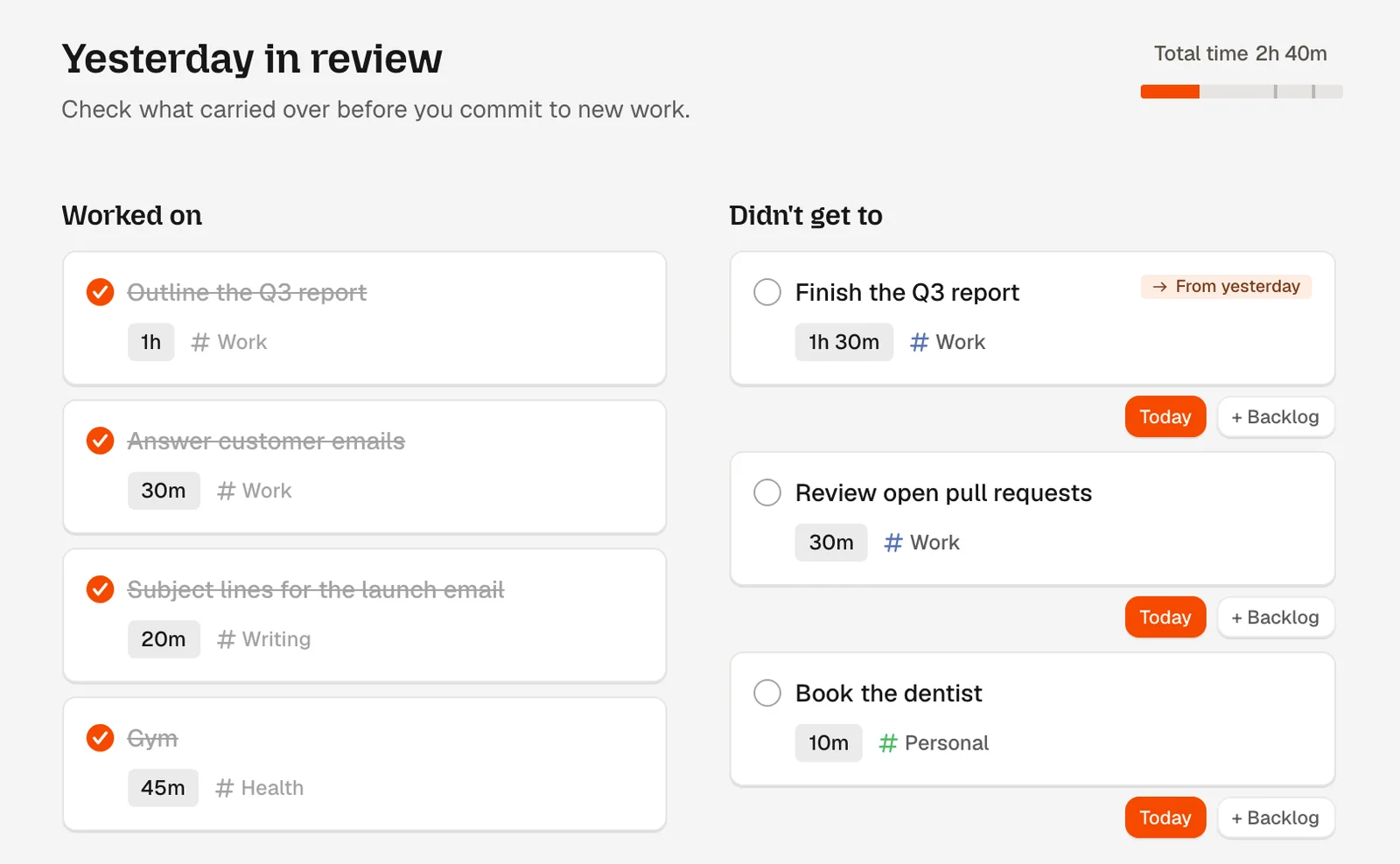
Every plan starts with a quick look back. Dayplan splits yesterday into two columns, with the total time you put in at the top:
- Worked on: what you actually did. Give it a second. A day that felt unproductive often looks different written down.
- Didn't get to: everything left open. Tasks you carried over at last night's shutdown wear a small From yesterday badge, so you know they're there on purpose.
For each unfinished task, make a call:
- Today: it still matters, so bring it into today.
- + Backlog: it matters, just not now. Park it.
- Tick it off: if you actually did it and forgot to check it, mark it done.
Tip: Don't bring everything forward by default. A task that's slipped three days in a row is telling you something. Either it isn't a priority, or it's too big to start. Send it to the backlog, or ask the Coach to break it into smaller steps.
Your very first plan skips this step, since there's no yesterday yet.
Step 2: What's in play for today?
Pull in anything that's on the table. You'll narrow it next.
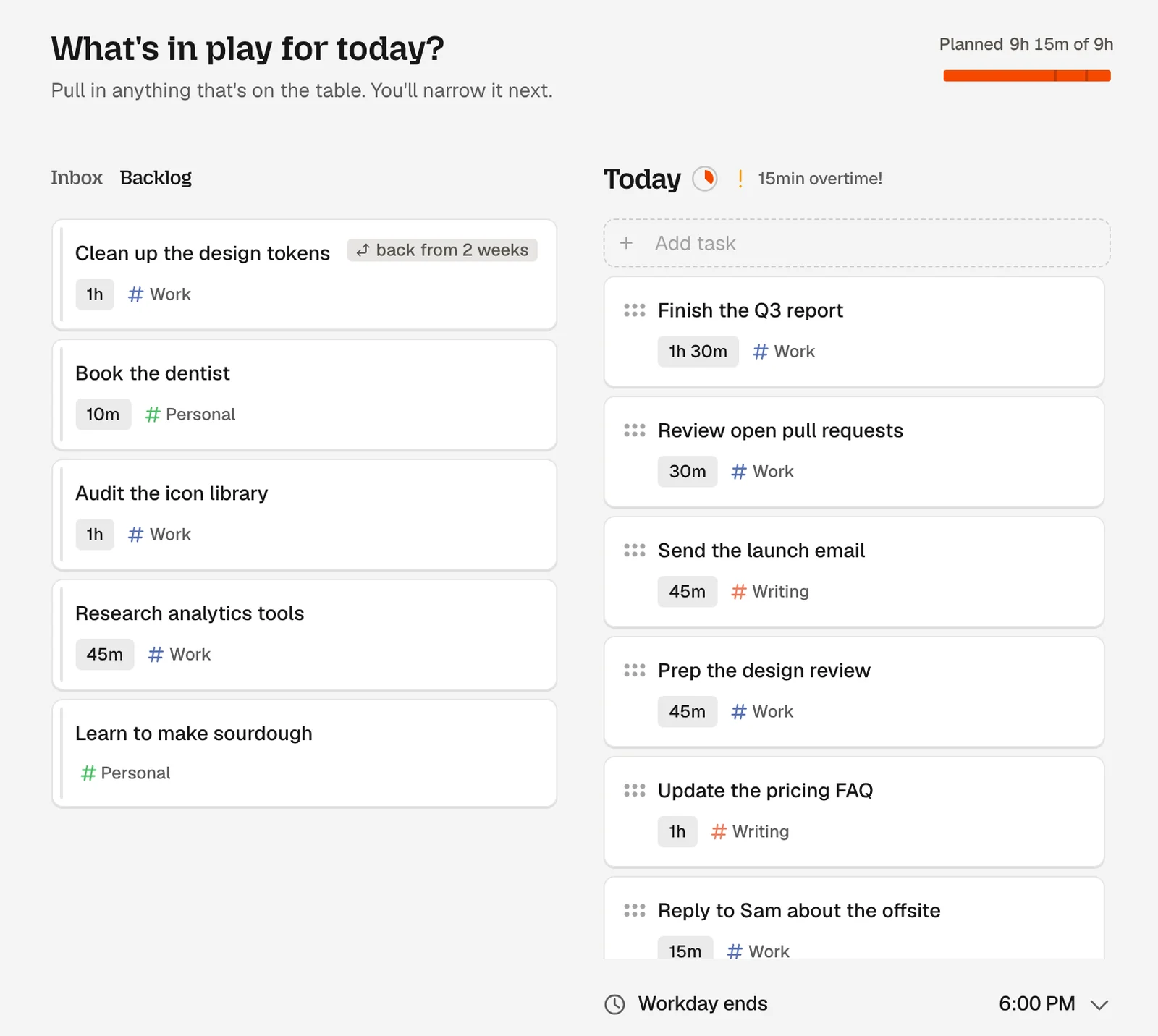
Now gather everything that might happen today. It's fine to be over-ambitious here. The next step does the cutting.
- Type new tasks straight into today: Type a task and press Enter.
- Pull from your Inbox: everything you captured since you last planned.
- Pull from your Backlog: tasks you parked earlier.
Look out for tasks that come back from the backlog on their own. When something you set aside a while ago is due for another look, it shows up at the top with a chip like back from 2 weeks, so you can decide on it with its history in view. Nothing you deferred disappears.
Watch the meter. From this step on, Dayplan shows how much you've planned against the time left in your workday, like Planned 9h 15m of 9h. Tasks without a duration count as 30 minutes for now. Go over, and it flags it next to Today: "15min overtime!" It's a warning, not a block. You'll fix it in the next step.
Tip: If your workday ends earlier than usual (an appointment, school pickup, an early dinner), change the workday end here. The meter will tell you the truth about how much fits.
Step 3: Without which task does today not count?
Use a task's star to mark up to three must do's, then move anything that can wait.
This is the most important step, and it's one question: without which task does today not count?
Not "what's most urgent?" Not "what's easiest to tick off?" The must-do is the thing that, if you did only that, would make today a good day. Sometimes that's the big project. Sometimes it's the workout, or the hard conversation.
Star your must-dos. Hover over a task, tap its star, and pick Must do. Your must-dos jump to the top of the list with a red star. You can pick up to three. Try to star a fourth and Dayplan stops you:
"You already have 3 must-do tasks. Unmark another must-do before adding this one. You can change this in Settings."
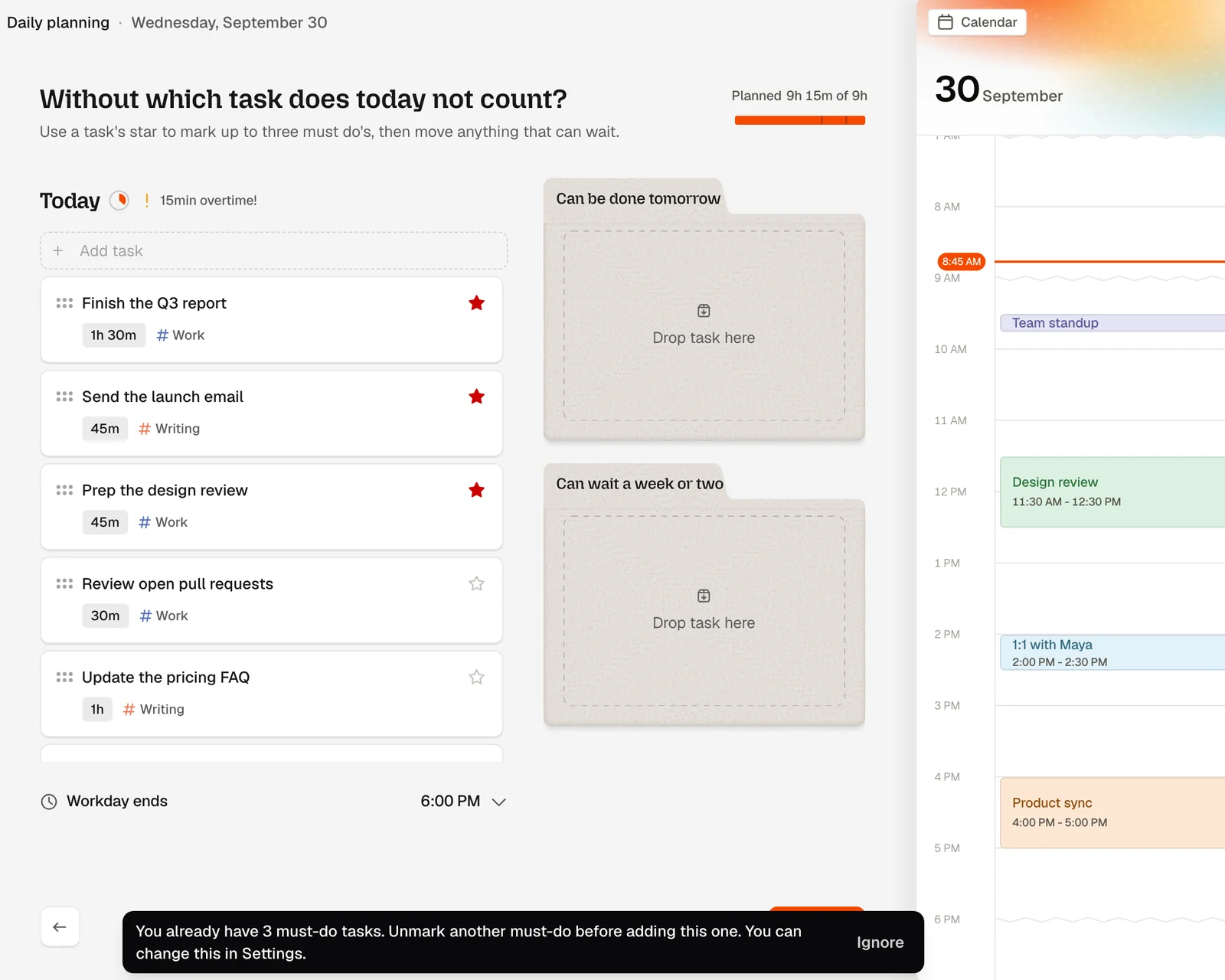
That limit is the point. Three is few enough to force a real choice, and enough for a balanced day. (It's on by default; you can change it in Settings. Here's why we think three is right.)
Then move what can wait. Drag tasks into one of two folders:
- Can be done tomorrow: moves the task to tomorrow.
- Can wait a week or two: parks it in your backlog. It'll come back on its own in about two weeks, with a back from 2 weeks chip.
Anything you leave stays on today's list as a nice-to-have.
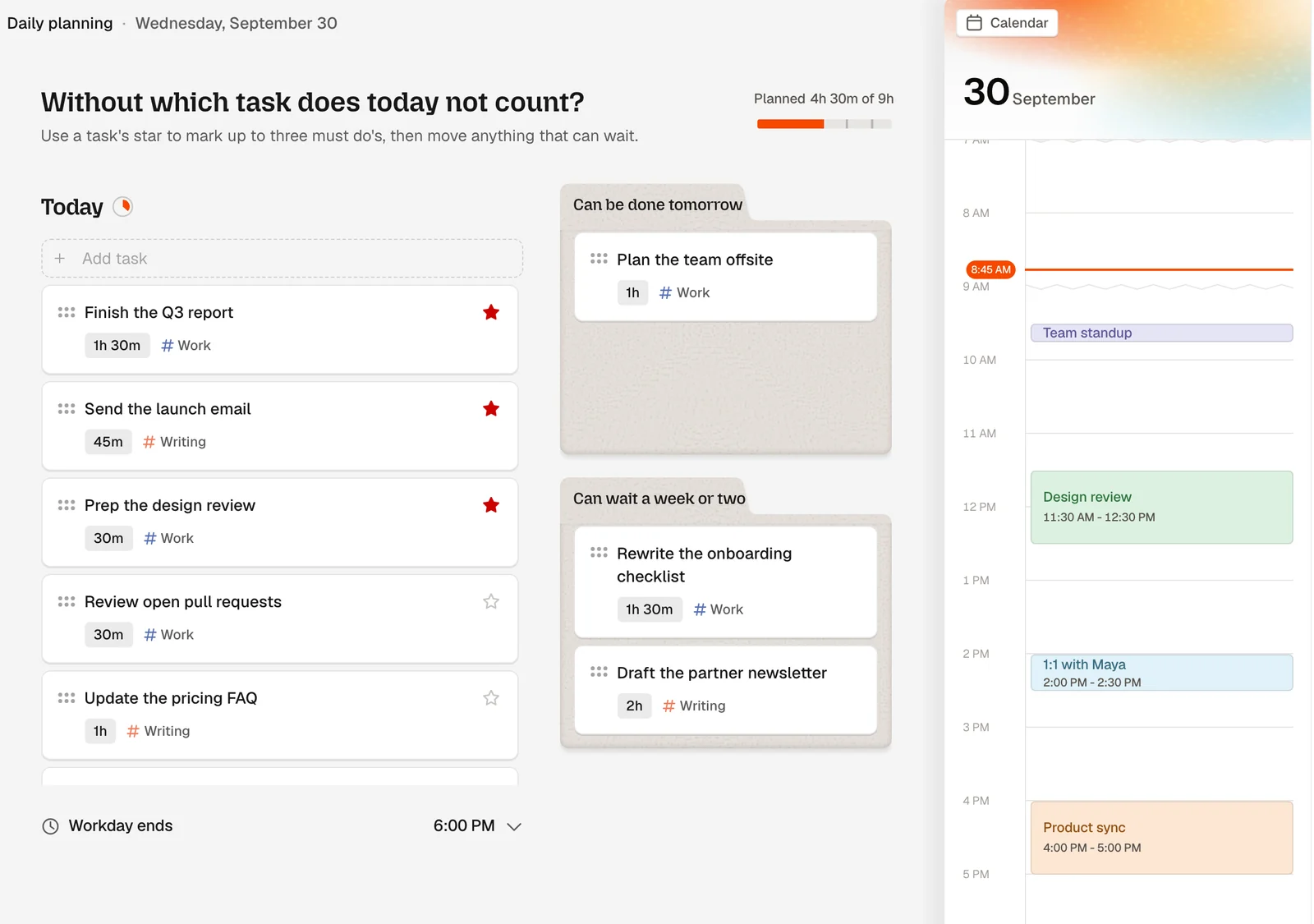
Tip: Look at the meter again. In the example above, moving three tasks took the day from 9h 15m down to 4h 30m, and the overtime warning disappeared. If you're still in overtime, keep moving tasks until you're not. It feels like giving up work. It's actually giving up the 4 p.m. feeling of being behind on a plan that was never possible.
Step 4: Shape the day
Set durations for your tasks, add breaks, then drag onto the calendar.
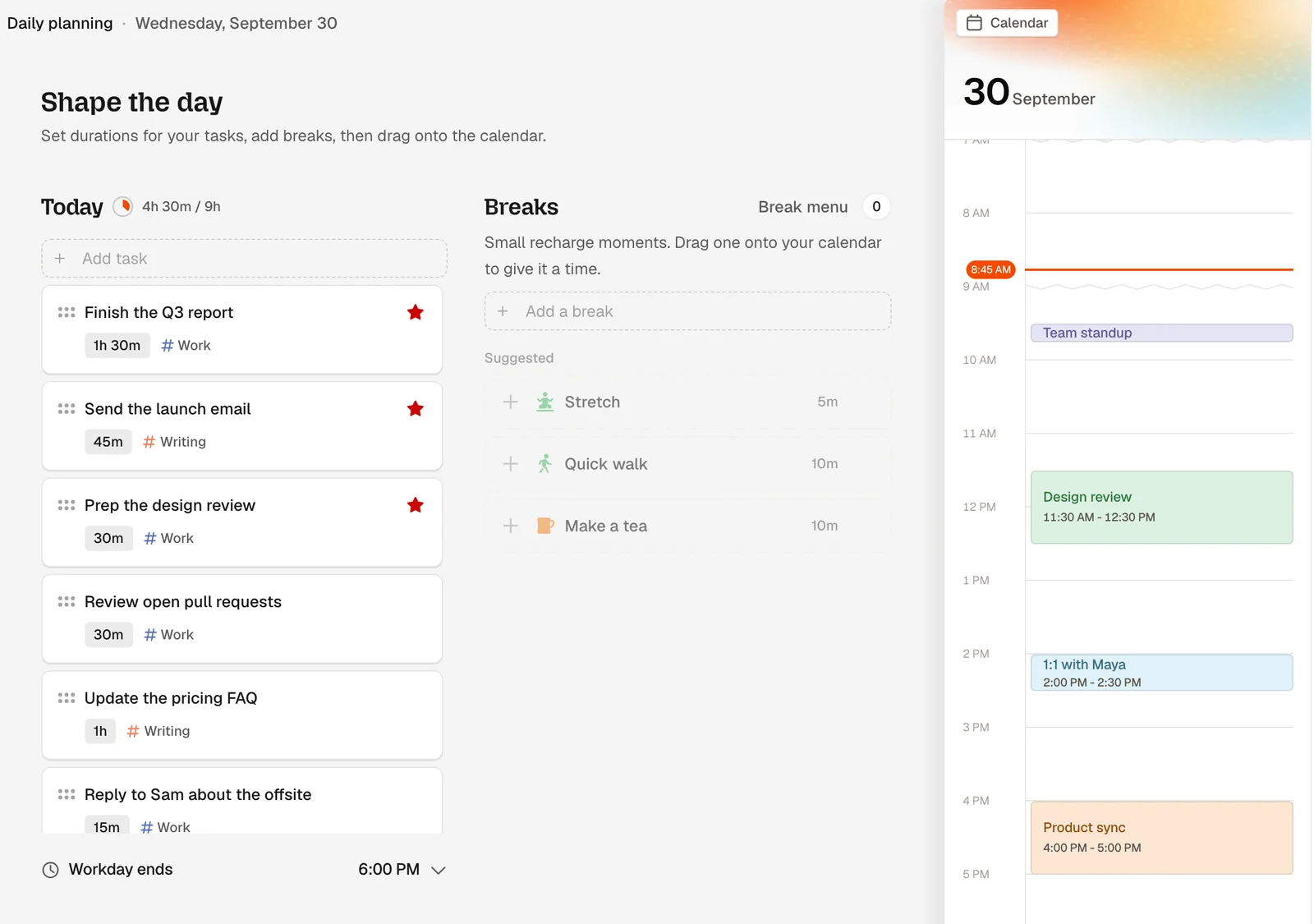
Now turn the list into a real day, in three moves.
Set durations
Give each task a rough length. "About 30 minutes" is fine; precision doesn't matter, honesty does. Most people underestimate, so if you're unsure, round up. And trim what's padded: in our example, prepping the design review really only needs 30 minutes, not 45.
Add breaks
This is where Dayplan is different from most planners. Breaks aren't gaps between tasks. They're part of the plan.
The Breaks rail ("Small recharge moments. Drag one onto your calendar to give it a time.") shows a few ideas, marked Suggested (based on breaks you tend to take) or From your menu (from the break menu you set up). Add one with a tap, or type your own into Add a break. Breaks show up in teal, a color no task uses, so rest never blends in with work.
A few rules of thumb:
- Plan breaks before the day fills up. If rest is whatever's left over, there won't be any left over.
- Put one after long focus blocks and back-to-back meetings. That's where energy drops fastest.
- Pick the break now, not later. When you're tired, "take a break" turns into "open Instagram." Choosing a walk or a coffee ahead of time gives tired-you a better default. (Why this matters: Why Social Media Ruined Your Breaks.)
Dayplan only suggests breaks. It never books one without you.
Drag onto your calendar
Finally, drag tasks and breaks onto the calendar next to your meetings. This is timeboxing: a task with a time is a commitment, and a task without one is a wish.
- Put must-dos where you're sharpest. For many people that's the morning, before meetings start.
- Leave some space. Not every minute needs a block. Buffer absorbs the meeting that runs over.
- Change your mind freely. Drag a block back off the calendar to unschedule it.
In a hurry? Any task can be auto-scheduled into the first free gap in your workday. You choose which ones; Dayplan never rearranges your day on its own.
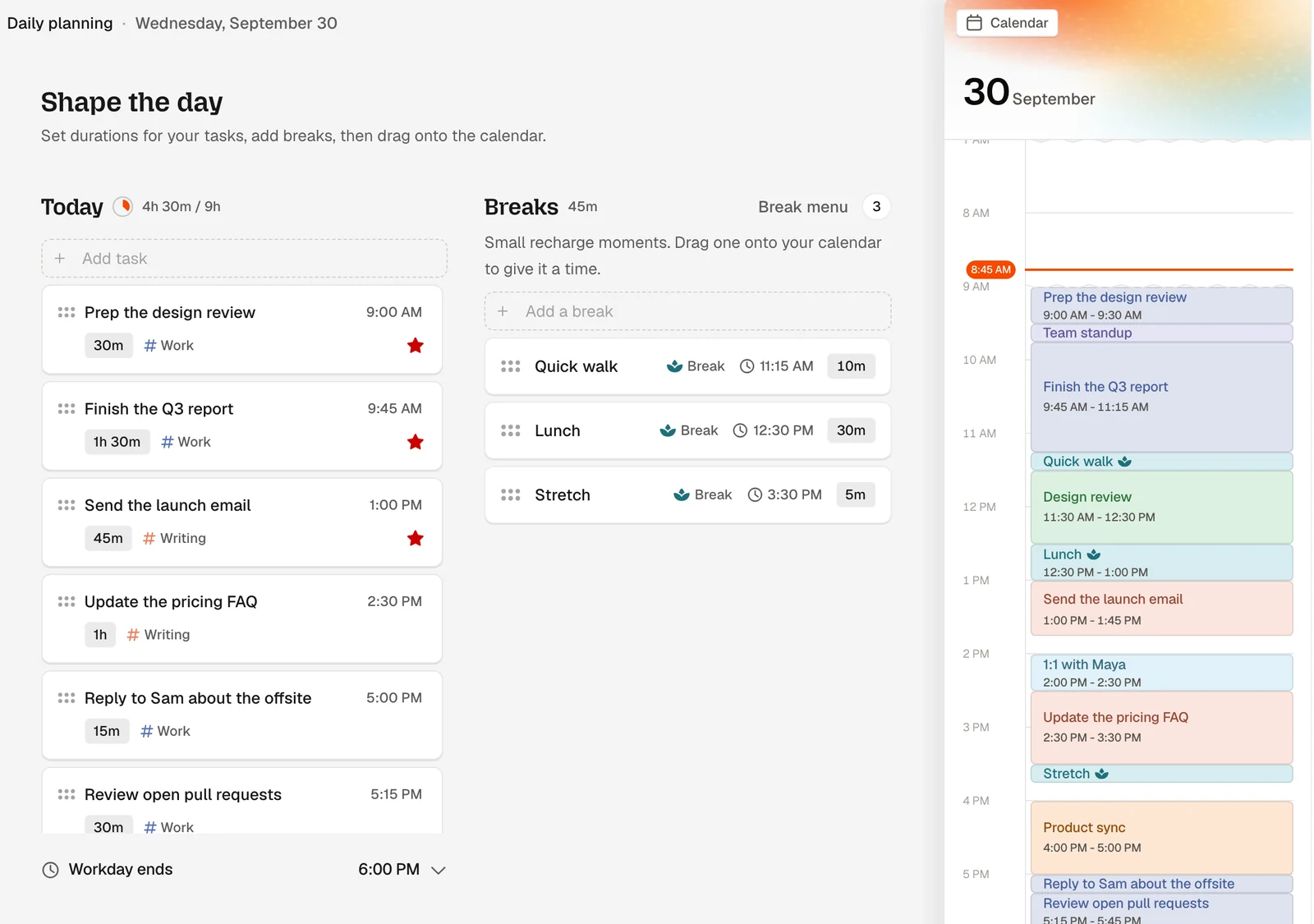
Tip: If the meter still shows overtime, the calendar will make it obvious: there's no room for everything. Go back a step and move one more task out.
Step 5: Your daily plan
Document your plan and set yourself up before starting.
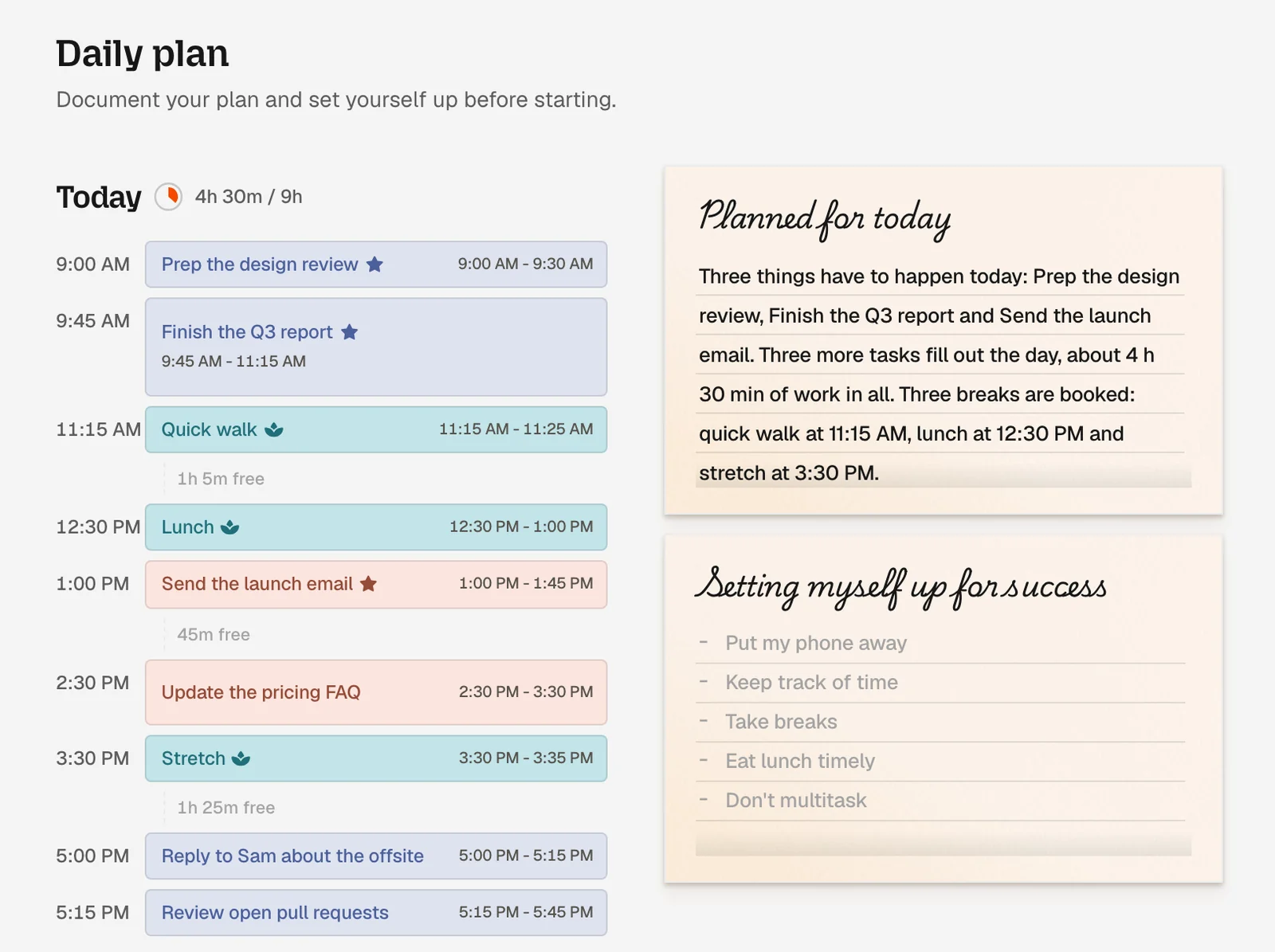
The last step reads your plan back to you, two ways.
On one side, your day as a timeline, with the free time between blocks marked. On the other, your plan written out in plain words under Planned for today. Dayplan drafts it for you. For the day above, it wrote:
"Three things have to happen today: Prep the design review, Finish the Q3 report and Send the launch email. Three more tasks fill out the day, about 4 h 30 min of work in all. Three breaks are booked: quick walk at 11:15 AM, lunch at 12:30 PM and stretch at 3:30 PM."
Edit it however you like. Reading your day as a sentence is a surprisingly good gut check. If it sounds exhausting, it probably is.
Underneath, Setting myself up for success asks what will help you actually follow the plan. A few ideas to start:
- Put my phone away
- Keep track of time
- Take breaks
- Eat lunch on time
- Don't multitask
Write one or two. They're small promises to yourself, and naming them makes them far more likely to happen.
Then hit Get going. Your day is decided.
During the day
A good plan isn't one you follow perfectly. It's one you can come back to when things change.
- When a task feels too big to start, ask the Coach to break it down into small steps. (How the Coach beats task paralysis)
- When your plan falls apart, don't replan everything. Pick the next hour, and let the rest wait.
- When you've been heads-down too long, a Pro Coach can send a gentle break nudge, at most twice a day, when your plan shows an hour or more of focused work and no break coming up.
And when the day's done, close it on purpose with the evening shutdown. Whatever you carry over will be waiting in tomorrow's review with a From yesterday badge.
5 habits that make daily planning stick
- Same time, every day. Planning works as a ritual, not a decision. Tie it to your first coffee.
- Plan less than you think you can do. A plan you finish beats a plan you admire. See The Capacity-First Planning Framework.
- Three must-dos, no more. If everything is a priority, nothing is.
- Breaks go in before the day fills up. Rest is part of the plan, not a reward for finishing it.
- Trust the backlog. Moving a task out isn't failing it. It'll come back.
Ready to plan tomorrow in five minutes? Daily planning is included on Dayplan's free plan. Get started
Frequently asked questions
About five minutes once you're used to it. The flow has five short steps: review yesterday, pick what's in play, choose your must-dos, shape the day, and read your plan back.
Up to three a day by default. If you try to star a fourth, Dayplan asks you to unmark one first. You can change the limit in Settings, but we recommend keeping it.
You decide. Move them to tomorrow, park them in the backlog for a week or two, or leave them on today's list as nice-to-haves. Tasks you park come back on their own with a "back from" tag, so nothing gets lost.
A workload meter compares your planned time with the time left in your workday. If you go over, it shows an overtime warning, like "15min overtime!", so you can move something out before the day starts.
No. You drag tasks onto your calendar yourself, which is part of committing to them. If you want a shortcut, you can auto-schedule any task into the first free gap in your workday. Dayplan never rearranges your plan on its own.
Plan before you open your inbox. Review what carried over from yesterday, pick no more than three must-dos, move everything that can wait, and give each remaining task a length and a time. Add breaks before the day fills up, and keep your planned work shorter than the time you actually have.
Less than you think. In an eight-hour workday, planning five to six hours of focused work leaves room for meetings, messages, and the things you didn't predict. Dayplan's workload meter shows your planned time against the time left in your workday, so you can see when you've planned too much.
Yes. Daily planning, must-dos, Dayplan's timeboxed calendar, and the shutdown are all on the free plan, for up to 100 tasks. Pro adds the Coach (in the app, over iMessage, and by voice), connects your Google and Apple calendars, and removes the task limit.